
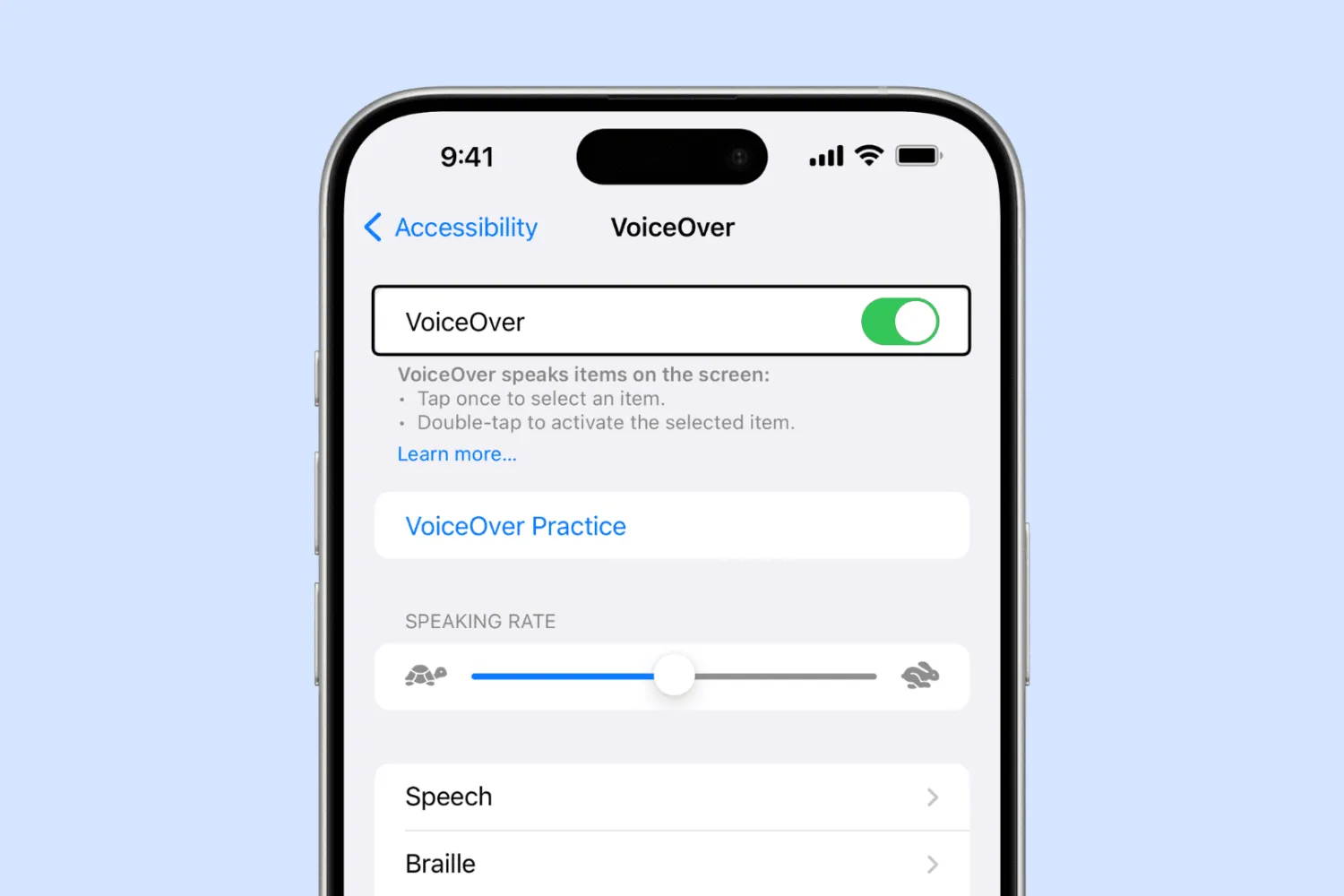
Setting Up VoiceOver on iPhone
A step-by-step walkthrough of enabling and customizing VoiceOver, Apple's built-in screen reader, for people with low vision.
For:Older Adults
Overview
This is the overview that will describe what this guide is talking about in a little more detail:
- Here's a bullet point
- Another bllet point
Followed by a numbered list:
- Here's my numbered list
- With number 2 here
With a Heading 3
And underneath it just some regular text.
Then a Heading 4
And underneath that some more regular text.
Safety note: Here's a safety note.
Tip: Here's a tip.
Accessibility Snapshot
Cognitive, Fatigue, & Focus
- Step-by-step
- Pausable
- Error-tolerant
Motor Control & Strength
- Low fine-motor precision
- Adaptive-tool compatible
Sensory & Environmental
- Visual confirmation available
- Minimal workspace
Here is my snapshot notes!
Materials
- 1 × Phone (Free)
Steps
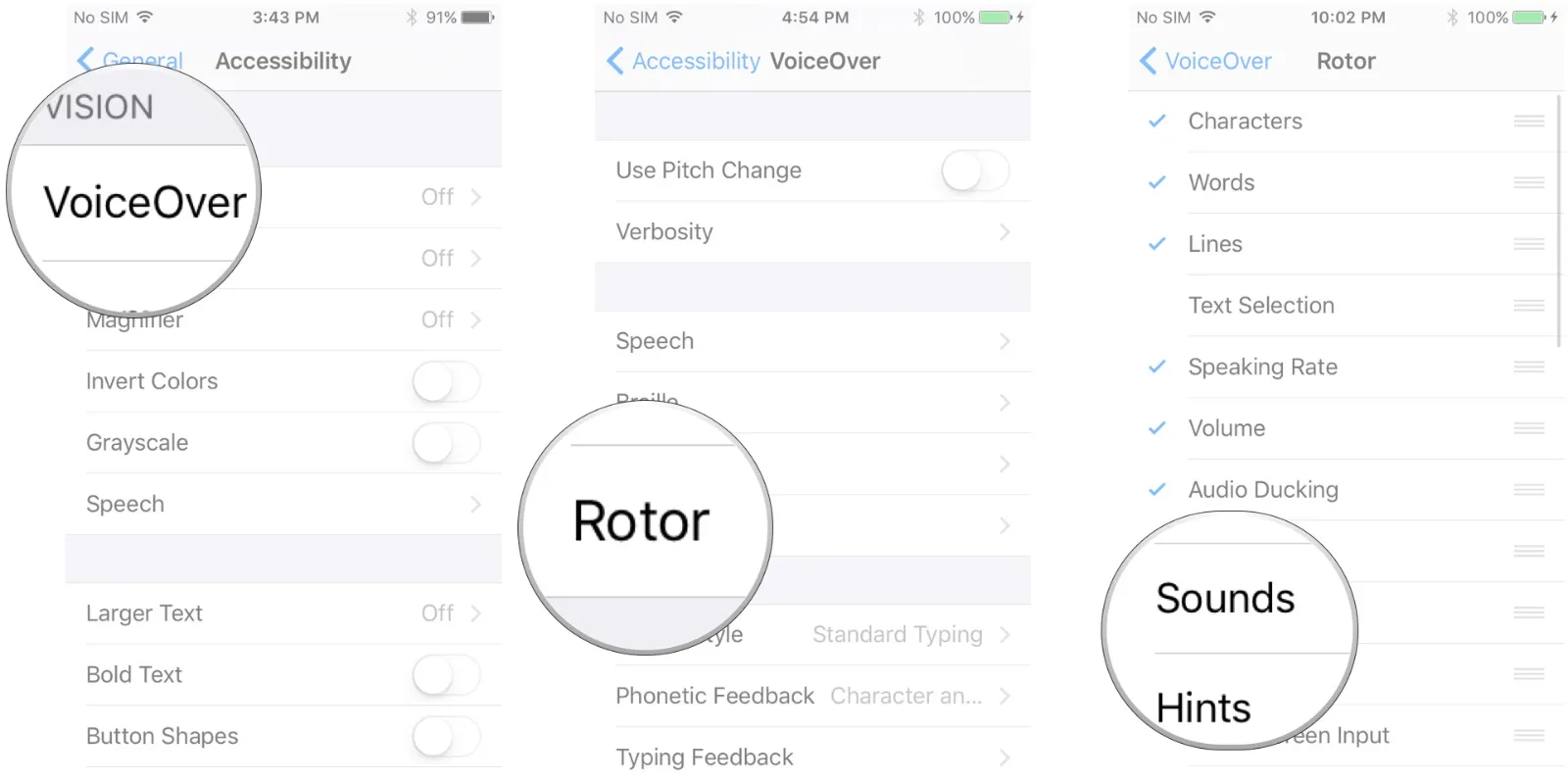
Step 1: Step 1 Title
Here's my example step one with a tip!Tip: Here's my tip.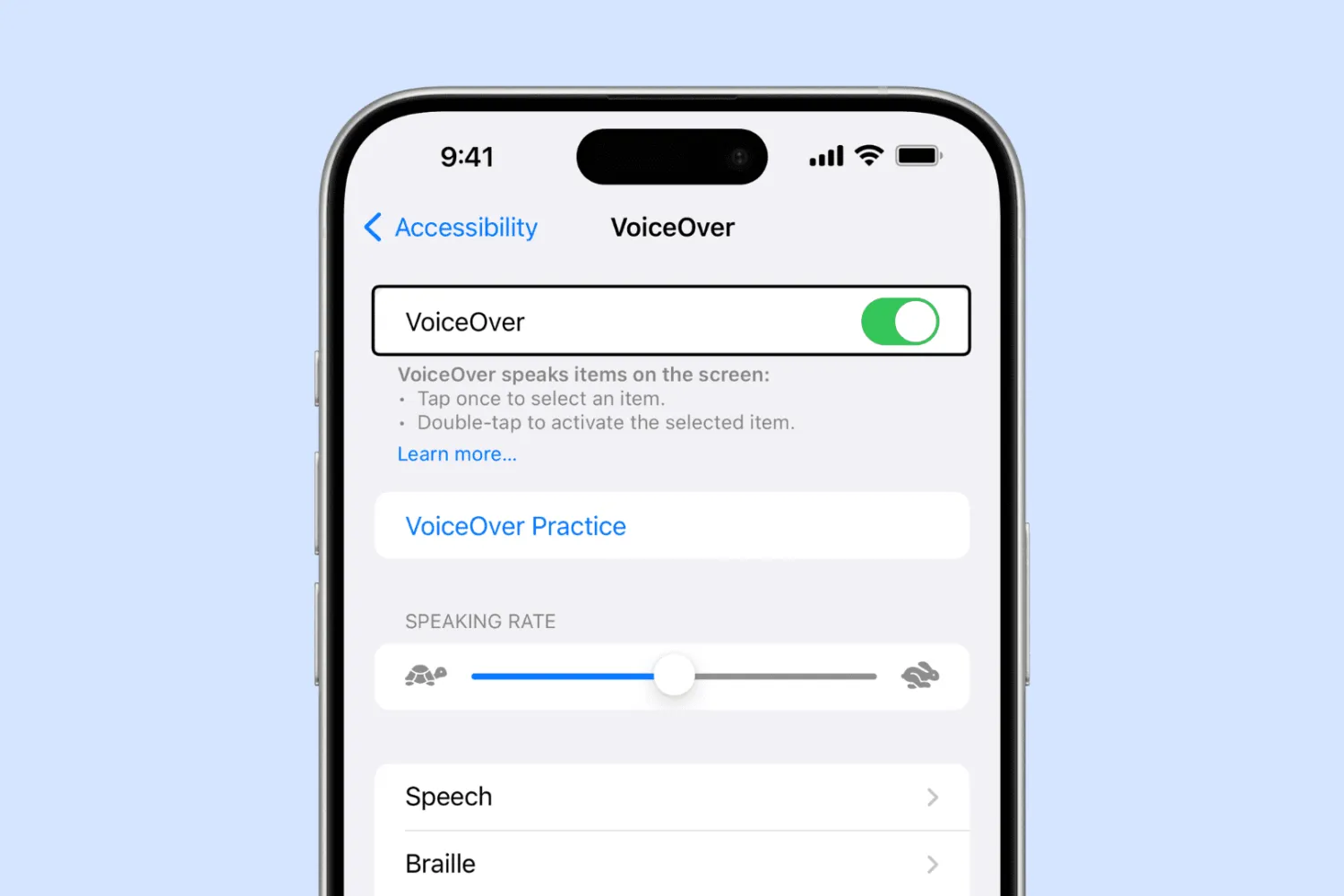
Step 2: Step 2 Title
Here's my example step two with a safety warning.Safety note: Here's my safety note.
Important Considerations
Here are some important considerations for this.
Troubleshooting
If you're having a difficult time locating the setting on your device, try searching for:
- Voiceover
- Or go to YouTube
Adaptations
Adaptations would go here!
Reviewed by: Lou's Locker
Version: 1.1
Adapted from: Various Resources
Medical disclaimer: The information in this guide is for general educational purposes only and is not a substitute for professional medical advice, diagnosis, or treatment. Always seek the advice of a qualified healthcare provider with any questions you may have about a medical condition or care plan. Read our Safety & Policies for more.